
Получили вложение электронной почты с расширением файла winmail.dat? Ну, файлы winmail.dat обычно отправляются через Microsoft Outlook. В качестве метода шифрования Outlook изменяет формат файла Word или PDF на winmail.dat. А вот и сложная часть. Невозможно напрямую открыть файл windat на любом устройстве. Даже если вы коснетесь файла несколько раз, вы увидите на экране нечитаемое содержимое. Вы можете открыть файл windat, изменив формат файла или используя сторонний инструмент для открытия winmail dat.

Хотите знать, как открыть файлы winmail dat на Mac? Вы пришли в нужное место. Следуя нескольким обходным путям, вы можете легко открыть файлы данных winmail в macOS, выполнив всего несколько простых шагов.
Давайте начнем.
Что такое файлы Winmail.dat?
Файлы Winmail.dat создаются Microsoft Outlook или Microsoft Exchange. Итак, если вы получили вложение электронной почты на свое устройство с именем «Winmail.dat», это означает, что отправитель отправил электронное письмо через Outlook.

Microsoft Outlook предлагает вам три формата на выбор при создании сообщения: Rich Text, HTML и Plain Text. Каждый раз, когда пользователь составляет сообщение электронной почты в формате Rich Text Format или HTML, Outlook автоматически прикрепляет файл winmail.dat вместе с письмом. Файл winmail.dat содержит информацию о форматировании электронного письма. Хотя это нечитаемый формат. Если пользователь выбирает простой текстовый формат при составлении сообщения, то файл winmail.dat не будет прикреплен к электронному письму.
Apple обычно рекомендует игнорировать вложения файла winmail.dat, поскольку они содержат только информацию о форматировании текста сообщения электронной почты. Но в некоторых случаях вам может понадобиться открыть файл winmail.dat на Mac. Если отправитель специально указал в письме для ссылки на прикрепленный файл, вы можете открыть файл winmail.dat. Вот 3 различных способа открытия файлов winmail dat в macOS.
# 1 Сохраните файл в другом формате
Щелкните вложение электронной почты правой кнопкой мыши и выберите «Сохранить вложение». Теперь в окне «Сохранить как» выберите нужный формат файла, например. DOC, если это файл Word или PDF.
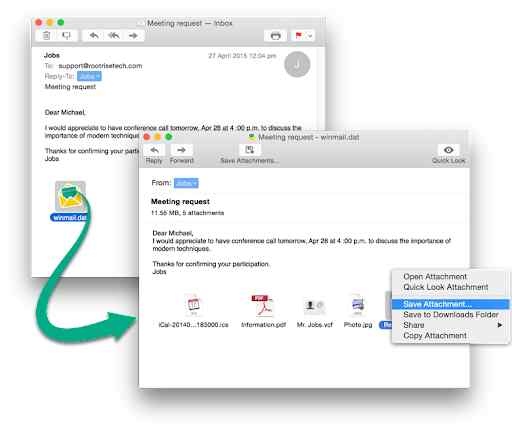
После изменения формата файла перейдите к расположению папки и попробуйте открыть файл, чтобы узнать, можете ли вы просмотреть его содержимое.
# 2 Используйте Winmail Dat Opener Tool
Еще одно простое решение открыть файл winmail.dat на Mac — использовать сторонний инструмент. Достаточно TNEF — это надежный инструмент, который поможет вам выполнить работу всего за несколько быстрых шагов.
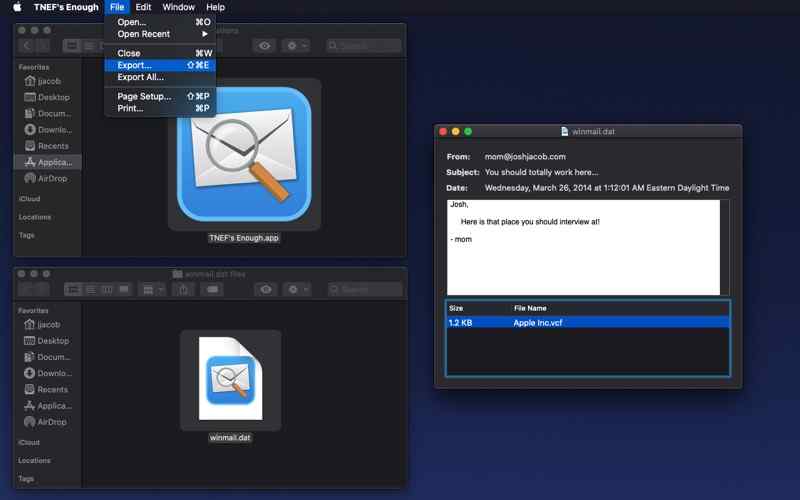
TNEF Enough доступен в Mac App Store и позволяет компьютерам Mac читать и извлекать файлы данных winmail самым простым способом. Итак, в следующий раз, когда вы получите файл winmail.dat в виде вложения к электронному письму, вы можете использовать приложение TNEF Enough для извлечения содержимого файла.
Запустите инструмент TNEF Enough на вашем Mac. Нажмите меню «Открыть с помощью», а затем перейдите к местоположению файла. Вы также можете перетащить файл winmail.dat для быстрого доступа. Вот и все!
# 3 Откройте вложение в Gmail

Gmail неплохо справляется с обработкой файлов Winmail. Итак, вот что вам нужно сделать.
Перешлите письмо с вложением winmail.dat в свою учетную запись Gmail. Теперь войдите в свою учетную запись Gmail и попробуйте открыть файл данных winmail, чтобы узнать, сработал ли этот взлом.
Загрузите и установите CleanMyMac X для оптимизации вашего устройства
Вас раздражает медленная и вялая работа вашего Mac? Что ж, у нас есть для вас полезное предложение. Загрузите и установите служебную программу CleanMyMacX на свое устройство, чтобы ваш Mac стал как новый. Да все верно!

CleanMyMacX — это универсальный пакет для точной настройки производительности вашего Mac всего за несколько кликов. Этот отличный инструмент глубоко сканирует ваше устройство, чтобы найти и удалить ненужные файлы и данные. CleanMyMacX удаляет ненужные файлы, такие как устаревшие кеши, прерванные загрузки, журналы и бесполезные локализации, чтобы оптимизировать производительность вашего Mac.
Заключение
Вот 3 различных способа открытия файлов winmail.dat на Mac. Вы можете изменить расширение файла, использовать сторонний инструмент или просто переключиться на Gmail для доступа к файлам данных winmail. Используйте любой из перечисленных выше методов для доступа к содержимому файла winmail всего за несколько простых шагов.
Удачи!
Post Views: 662
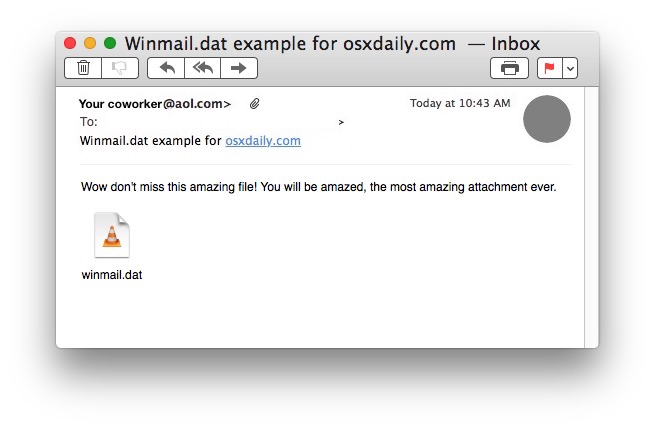
Many Mac Mail users who send and receive emails with their Windows counterparts using a mail client like Outlook or Microsoft Exchange will discover a “winmail.dat” file attached to those emails. If you try to open a winmail.dat file on Mac OS X, you’ll usually find there is nothing available to open the attachment, or it often contains gibberish and is illegible.
We’ll show you several ways Mac users can open winmail.dat files attached to emails. We’ll also explain what a winmail.dat file is and where they come from.
What is a Winmail.dat File?
Winmail.dat files are generated by Microsoft Exchange and Microsoft Outlook, Mac users typically find them arriving in emails sent from the Windows world and opened in Mail app, and the winmail.dat files can be one of two things; rich text formatting for an email (for example, bolded text, or a stylized HTML email signature, a vcard), and less often, they can be an actual email attachment file which has been wrongly identified as winmail.dat, but is actually a Word document, calendar invite, Excel spreadsheet, RTF file, or some other legitimate file type that has been attached to the message.
3 Ways to Open Winmail.dat Files on a Mac
Do keep in mind if the winmail.dat file is simply a rich text version (TNEF) of the email that has been received, there is little reason to open it, as it would simply be a stylized version of the email you already received (much like the difference between TXT vs RTF files). In fact, Apple actually tells you to ignore winmail.dat files completely if they arrive in Mail app, which is often fair advice, but in some situations the winmail.dat file is an actual email attachment that has been misidentified, and thus need to be opened. Because it can be difficult to know the difference between the two ahead of time, it’s important to know the intention of the email sender, if it’s just a casual message with a small winmail.dat file attached, it can usually be ignored, whereas if the sender is referring to an attached document which has shown up as a winmail.dat file instead of whatever they reference, you’d likely want to try and open it.
There are several ways to open and access winmail.dat files in Mac OS X, we’ll cover three of them; one involving a relabeling trick, another using an application, and another using a webmail client
Method 1: Saving the Winmail.dat File as the Intended File Type
Often the easiest way to open a winmail.dat file in Mac OS X is to save it and relabel the file as the intended file type. For example, if you get an email from an Outlook user in Windows saying “attached is the import Microsoft Word document” then you’d know it is supposed to be a .doc or .docx and can be treated accordingly. Be sure you have the show file extensions feature of Mac OS X enabled for best results.
- Open the email message containing the winmail.dat file in Mail for Mac
- Right-click (or Control+Click) on the winmail.dat file contained in the message and choose “Save Attachment”
- In the save dialog box, remove the ‘dat’ extension and replace it with the intended attachment file type (for example, .rtf, .docx, or .pdf), then save the file as usual to a place you can access it in the Finder
- Open the saved and renamed attachment file as usual, it should open without incident with the new file extension
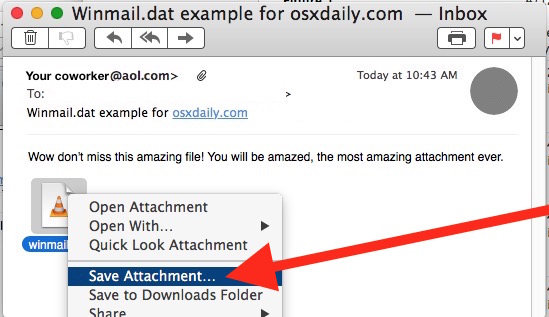
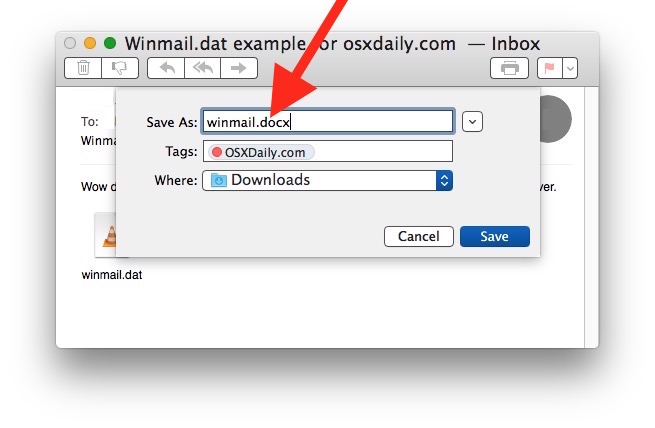
This is admittedly a little silly, but file extensions identify what a file is and how it opens in all operating systems, so even if a file is one type it can be misconstrued as being another if the extension is wrong – whether Mac OS X or Windows. The good news is despite being a bit of a workaround, this works to open winmail.dat files almost always on the Mac, assuming it’s a file that has been misidentified.
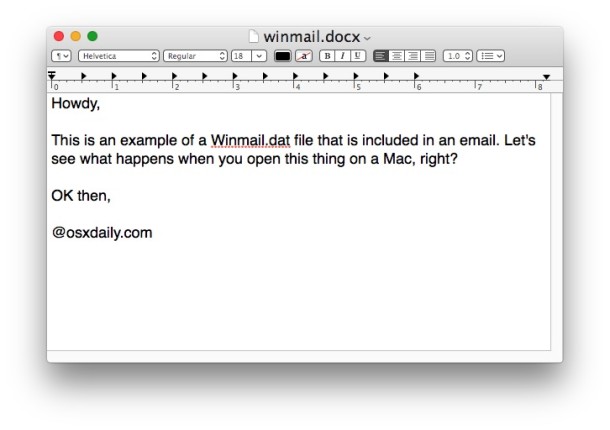
In this example, a winmail.dat file has been wrongly identified as belonging to VLC, but it’s actually just a docx file, thus renaming the extension and opening the docx in Mac OS X as usual allows the once erroneously named ‘winmail.dat’ file to be seen as intended. In this case it was a docx file that was quite simple so it opened fine in TextEdit with the new file extension:
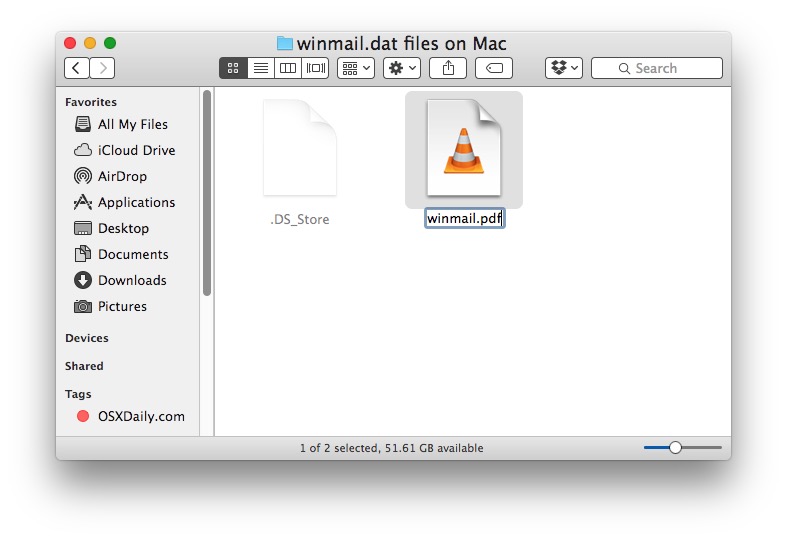
You can also save the winmail.dat attachment to the Finder and relabel the extension there, which can then be opened as usual.
Method 2: Use TNEF Enough to Extract Winmail.dat Files in Mac OS X
If you’re a Mac user who frequently encounters many emails sent from Windows users with ‘winmail.dat’ attachment files, another approach is to use a free tool called “TNEF’s Enough” (Sound it out, teneffs enuff – creative!). This is probably the best approach if you see and encounter many winmail.dat files on the Mac (whether in Mail or otherwise) and want to always get to the bottom of them quickly.
- Get TNEF’s Enough from the Mac App Store (free)
Once installed, you can use TNEF’s Enough with the “open with” menu, or by dragging and dropping the winmail.dat files into the application itself. The app will then sort out what the winmail.dat file is supposed to be for you, which you can then save or export yourself directly from the app. Often you’ll find the winmail.dat file is just a boring rich text formatted email sent from Microsoft Outlook or Microsoft Exchange, but as we’ve mentioned, they can also be misidentified attachments too.
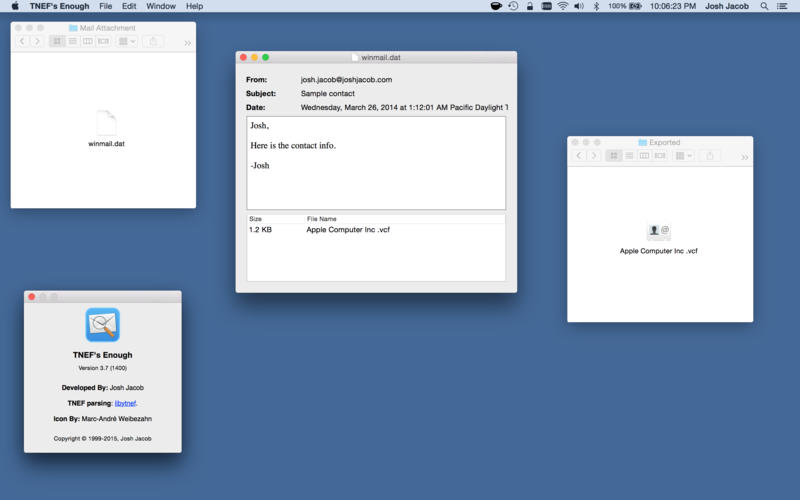
The creator of TNEF’s Enough describes the utility as follows:
TNEF’s Enough allows Macs to read and extract files from Microsoft TNEF files. The files are usually received via email from Microsoft Exchange and Microsoft Outlook users. Standard e-mail programs will receive the TNEF file as an attachment named “winmail.dat.”
The “winmail.dat” file can contain attachments, contact files (.vcf) or calendar files (.ics) as well as a rich text or HTML version of the email body. TNEF’s Enough can open the “winmail.dat” file and allow you to extract the attachments.
This app works really well, so if you find yourself with a regular dose of winmail.dat mysteries to deal with, it’s a worthwhile install. It’s free, and there’s even an iOS version available too for those who encounter the same attachments on the mobile side of things.
Method 3: Forward the Email with Winmail.dat to Gmail
The Gmail web based email client has no problem handing winmail.dat files, and will almost always accurately interpret the winmail.dat as either a rich text formatted email, or as an accurate file attachment.

This is literally just a matter of forwarding the email in question to your own gmail account, then opening GMail.com in a web browser to view and open the file. The winmail.dat file will either be rendered as a formatted email as intended from the Microsoft Outlook / Exchange side of things, or you can open it within Google Docs on the web. This forward approach is not a fancy solution, but it works great.
Finally, you can also just request the sender in the Windows world stop sending their emails in rich text format and instead send them as plain text, but that’s not always possible, and not every sender is compliant. Plus, with how popular HTML signatures are, it may not be a reasonable solution anyway.
-

-
 a10 wrote in ru_mac
 February 3 2012, 00:25
 a10
a10 ru_mac
- Общество
- Cancel
Друзья,
Я уже писал про проблемы с Mail.app связанные с получением любого вложения в виде файла winmail.dat
Как оказалось эта проблема обошла всех кроме меня.
У нас почта размещена на Google APP, дак вот письма приходящие туда, приходят нормально без winmail, а ко мне в Mail.app уже приходит с winmail.dat вместо вложения. Причем смена типа письма в Outlook не помогает.
Провел эксперимент и с этого компа послал письма себе и коллеге, у него все ок, у меня опять winmail.dat Но при этом мне пишут люди из других компаний и ни с кем не было подобной проблемы. Есть подозрение, что нужно просто переставить Mail.app, но мне кажется это нереально сделать без переустановки всей системы?
Подскажите как быть, не хочется день терять или на выходных этим заниматься.. У меня iMac, 10.6.
Спасибо!
- Remove From My Forums

winmail.dat rears its ugly head — Office 365/Outlook 2016/Win10
-
Question
-
Hi,
I’ve been bounced to this forum from the Office 365 forum, to try and get a resolution to this persistent winmail.dat issue. This has now persisted for more than two months, and our company is increasingly looking like clowns in front of our customers.
Here’s the original issue:
We’re getting persistent problems with one of our users sending attachments from Outlook 2016/Win 10 to a client on Gmail/Mac OS10.10/Apple Mail, where all attachments appear as the dreaded winmail.dat files.
I’ve run the (I can’t insert the link because of yet another Microsoft account mess-up) fix twice to no avail on the Microsoft-hosted Exchange instance.
Also of note:
— We only have one PC running Outlook 2016 (all other users are on Mac)
— The PC user is able to send attachments to other internal Exchange-based accounts without problems, and no errors occur when internal Mac users read the messages using Apple Mail
— There are no problems reported from any external recipients using PCs, irrespective of mail server platform (including Gmail)
— There are no problems sending attachments from Outlook 2016/Mac to the problematic Gmail/AppleMail account
— There are no problems sending attachments from the offending account using OWA
The version number of Outlook is 16.0.6366.2056, and a check reveals that it’s the latest version — no newer updates are available.
It would be nice to actually get some forward progress on this — so far, this is the third Microsoft forum I’ve logged the issue with, and there have been
two separate tickets raised on two Help Desks.Thanks …. Kent
Answers
-
We appear to have found the solution — which I’m posting here to (hopefully) save some other poor b*stard from having to wade through weeks of poor documentation, support calls and forum posts.
The problem: Some email recipients on Mac OS X using Apple Mail and Gmail receive winmail.dat attachments in place of correctly-encoded MIME attachments from users running Outlook 2016/Windows 10/Office 365 hosted mail. They can’t open the
faulty attachments and (in our case) the result is grumpy clients.The cause: The issue is that Exchange can still encode attachments as RTF rather than MIME. There’s no need for this in a hosted SaaS email service in 2016 — it’s a legacy piece of Exchange functionality that’s probably kept around in the
code-base for reasons known only to Microsoft. But it’s definitely a pain in the neck for those of us who don’t need backwards-compatibility to dinosaur-era Exchange servers.The solution: You’ll undoubtedly come across various articles and suggestions that you need to indulge in a whole bunch of PowerShell jiu jitsu in order to fix the problem. In our case this didn’t work — or at least not for any length of
time. Thankfully, there is an (apparent) fix lurking in the Office 365 Admin GUI. It goes like this:- Login to your Office 365 Portal (portal.office.com) using your Admin credentials.
- Click the Admin icon.
- Flip down the Admin sub-menu from the left-hand menu, and click Exchange. This will take you to your hosted Exchange admin page.
- Click Mail Flow from the left hand menu.
- Click Remote Domains from the top menu line. This will allow you to configure a specific set of rules for the offending recipient domains.
- Click the Plus icon above the name field. This brings up a separate page that allows you to start the process of configuring the rules for the recipient domain(s).
- Give the configuration a suitable name for the rule you’re adding.
- Add the fully-qualified domain name for the recipient that’s having the problem with the winmail.dat attachments. As far as I can tell, the configuration should support wildcards — YMMV.
- About two-thirds of the way down the page, you’ll find the «use rich text» setting — it will default to «Follow user settings». Change this to «Never».
- For extra credit, you can change the default MIME encodings to Unicode (UTF-8) instead of Western (ISO), as in my experience it seems to transition through foreign mail servers better — but again, YMMV.
- Hit the Save button.
Of course, you’ll need to add each domain individually if you have lots of recipients with the winmail.dat problem. The obvious fix is to use the «default» rule to set «use rich text» to «Never» — although in our case our Exchange
instance already had this setting, but the problem persisted. Go figure.In my view, the likely cause is that the Office 365 Exchange instance isn’t respecting the encoding preferences in the Outlook 2016 client — in which case it’s a Microsoft bug. Feel free to fix it, guys.
Hope this helps someone.
Cheers ….. Kent
-
Marked as answer by
Tuesday, February 2, 2016 8:22 AM
На чтение 3 мин. Просмотров 4.4k. Опубликовано 04.07.2019
Содержание
- Как избежать этого раздражающего вложения Winmail.dat
- Когда, как и почему создается Winmail.dat
- Предотвращение отправки вложений Winmail.dat в Outlook
- Предотвращение вложений Winmail.dat в Outlook 2007 и Outlook 2003
- Отключить Winmail.dat для определенных получателей
- В Outlook 2019 и 2016
- В Outlook 2013, 2010 и 2007
- Извлечение файлов из Winmail.dat без Outlook
Как избежать этого раздражающего вложения Winmail.dat
Жалуются ли получатели ваших писем на таинственное вложение под названием winmail.dat, которое они не могут открыть? Файлы, которые вы прикрепляете к электронным письмам, исчезают в этой пропасти winmail.dat? Winmail.dat отображается для некоторых, но не для всех получателей ваших сообщений? К счастью, вы можете полностью избавиться от winmail.dat, убедившись, что Outlook не отправляет почту с использованием RTF.
Инструкции в этой статье относятся к Outlook 2019, 2016, 2013, 2010, 2007, 2003; и Outlook для Office 365.
Когда, как и почему создается Winmail.dat
Если Outlook отправляет сообщение, используя формат RTF для полужирного текста и других улучшений текста, он включает команды форматирования в файле winmail.dat. Получающие почтовые клиенты, которые не понимают этот код, отображают его как вложение. Outlook также может упаковать другие вложения в файл winmail.dat.
Предотвращение отправки вложений Winmail.dat в Outlook
Чтобы Outlook не прикреплял файл winmail.dat при отправке электронной почты:
-
Перейдите в Файл .
-
Выберите Параметры .
-
Перейдите на Почта .
-
В разделе Создать сообщения выберите стрелку раскрывающегося списка Создать сообщения в этом формате и выберите HTML или Обычный текст . ,
-
В разделе Формат сообщения выберите стрелку раскрывающегося меню При отправке сообщений в формате Rich Text получателям из Интернета и выберите Преобразовать в формат HTML или Преобразовать в простой текстовый формат .
-
Выберите ОК .


Предотвращение вложений Winmail.dat в Outlook 2007 и Outlook 2003
Чтобы убедиться, что Outlook 2007 к Outlook 2003 не прикрепляет файлы winmail.dat:
-
Выберите Инструменты > Параметры .
-
Перейдите в Формат почты .
-
В разделе Создать в этом формате сообщения выберите HTML или Обычный текст .
-
Нажмите ОК .
Отключить Winmail.dat для определенных получателей
Стандартные параметры форматов исходящей почты в Outlook могут быть переопределены для отдельного адреса электронной почты. Если получатель все еще получает вложение winmail.dat после того, как вы внесли изменения в настройки, сбросьте формат для отдельных адресов.
В Outlook 2019 и 2016
-
Убедитесь, что адрес электронной почты отсутствует в ваших контактах Outlook.
В Outlook 2019 и 2016 в настоящее время нет способа изменить параметры отправки для адресов электронной почты, назначенных записи адресной книги.
-
Откройте электронное письмо с нужного адреса электронной почты или создайте для него новое сообщение.
-
Щелкните правой кнопкой мыши по адресу.
-
Выберите Открыть свойства Outlook .
-
В разделе Интернет-формат выберите Отправлять только обычный текст .
-
Выберите ОК .


В Outlook 2013, 2010 и 2007
-
Найдите нужный контакт в контактах Outlook.
-
Дважды щелкните адрес электронной почты контакта или щелкните правой кнопкой мыши нужный адрес электронной почты, затем выберите Открыть свойства Outlook или Свойства Outlook .
-
В разделе Интернет-формат выберите Разрешить Outlook выбрать лучший формат отправки или Отправлять только обычный текст .
-
Нажмите ОК .
Извлечение файлов из Winmail.dat без Outlook
Если вы получаете вложения winmail.dat со встроенными файлами, распакуйте их с помощью декодера winmail.dat в Windows или OS X.