
Устранение некоторых ошибок, которые появляются при запуске 3D Max-а 2018.
Если ошибка носит такой характер:
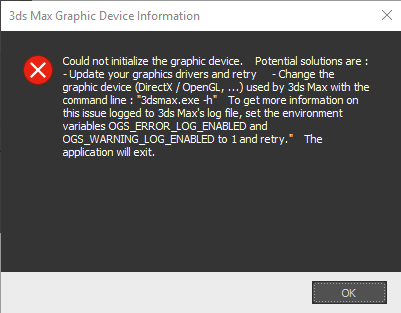
Could not initialize the graphic device
Potential solutions are :
— Update your graphics drivers and retry
— Change the graphic device (DirectX / OpenGL, …) used by 3ds Max with the command line : «3dsmax.exe -h»
The application will exit
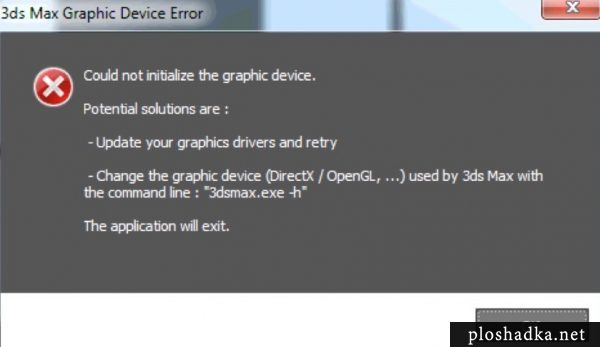
То исправить её обычно не сложно. В панели пуск, в папке, в которую установился Autodesk 3D Max будет ссылка, где можно поменять настройки запуска. Поочередно меняем запуск с графикой от DirectX, OpenGL и всеми другими доступными вариантами. Какой-то из них да сработает.
Если ошибки имеют такой вид:
Type error: extends: requires MAXClass, got undefined
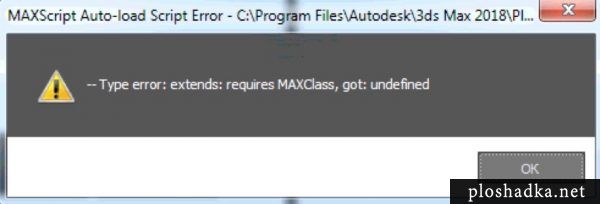
Ошибки могут ругаться и на другие классы и DLL:
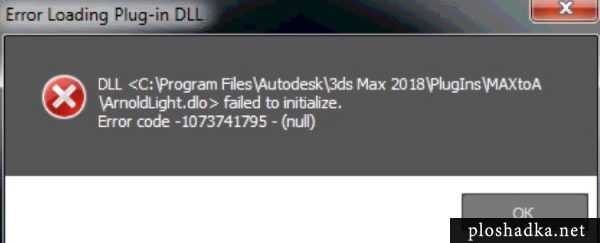
То дело хуже. Что-то установилось не так. Либо поврежденный установочный дистрибутив либо несоответствие мощности компьютера, устарелости операционной системы и много чего ещё.
В этом случае рекомендую скачивать 3D Max только с официального сайта. Для студентов программа на 3 года бесплатна. Если и после этого программа не запуститься, значит скорее всего надо менять компьютер.
Issue:
When starting 3ds Max, one of two different error messages may appear:
3ds Max Graphic Device Error
![[Error]:"Could not initialize the graphic device" message appears when launching 3ds Max](https://s3-us-west-1.amazonaws.com/help.autodesk.com/sfdcarticles/img/0EM3A000001IfN5)
or
3ds Max Graphic Device Information
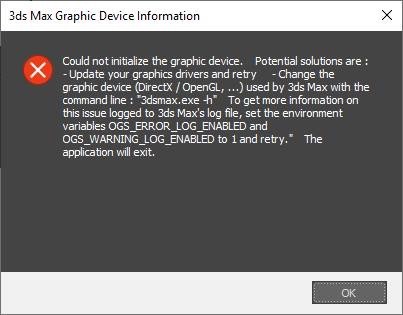
Causes:
This error can occur for the following reasons:
- Incompatible or unsupported graphics card or graphics card drivers.
- 3ds Max does not recognize a suitable GPU to utilize on the current device (e.g. virtual machines, VMWare, Boot Camp.
See: Running 3ds Max and Maya in Virtual Environments, such as Boot Camp, Parallels, VMWare, AWS Cloud, or Citrix. It is important to note that these configurations are not officially supported by Autodesk.
- Running an earlier version of 3ds Max 2018 (Note: this is for versions pre-update 2018.4, which fixes this issue for this version only).
- Direct3D version mismatch settings present in the 3dsmax.ini file.
Solution:
Install missing updates
- Go to your Autodesk Account.
- Choose Products & Services > All Products & Services.
- Select 3ds Max.
- View the Updates and Add-Ons.
- Find the most recent Update for the version of 3ds Max being used.
- Select the Browser Download option.
For example, if running 3ds Max 2020, the most recent update is 2020.3.
Ensure the graphics card is Certified
Verify that the graphics card is listed on the 3ds Max Certified Hardware list.
Otherwise there may be limitations to its usage with the program in general or on specific Operating Systems.
For example 3ds Max not opening, slower Viewport manipulation and the software not opening after upgrading from an OS such as Windows 7 to Windows 10.
Install the most recent graphics card drivers
Update the graphics card drivers from the manufacturer’s website to the most recent versions. For graphics card updates see:
- NVIDIA Driver Downloads
- AMD Driver Downloads
- Intel Driver Downloads
Change the Display Driver
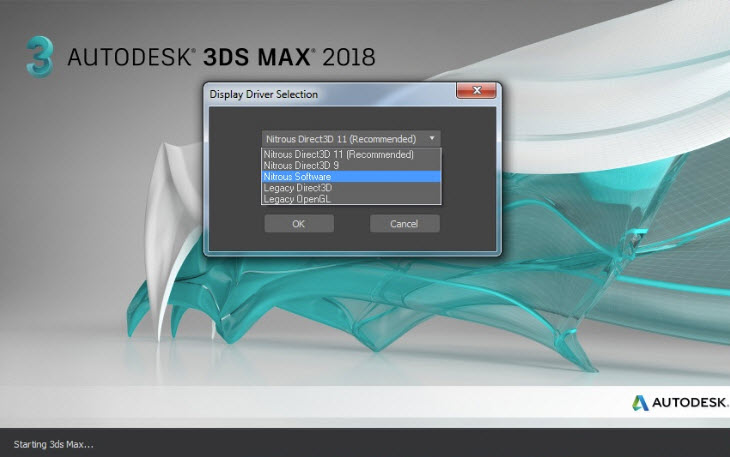
Use the VXS flag
Run 3ds Max with a “-vxs” flag. To do this:
- Right-click on the 3ds Max <version> shortcut icon.
- Choose “Properties.”
- Under the Shortcuts tab, add the flag -vxs to the end of the Target entry.
Note: A space must be added after the last quotation for 3ds Max to accept the flag.

Check the 3dsmax.ini settings
1.Go to C:UsersusernameAppDataLocalAutodesk3dsMax[version]ENU.
Note: if this folder does not appear in Windows Explorer, make sure to check the View > Hidden Items checkbox in Windows Explorer.
2. Open the 3dsmax.ini file in a text editor, such as Notepad.
3. Press CRTL + F and search for the section marked[CommandPanel].
4. If there are two entries for GFXDirect3DVersion under the [CommandPanel] and [WindowState] sections, they must be identical.
If one shows as 9.0 and the other shows as 11.0, change one of the Direct3D entries to make it identical with the other (usually, both should be set to 11.0). If there is only one GFXDirect entry, skip to the next solution.
[CommandPanel]
GFXDirect3DVersion=9.0
RollupBreakThreshold=50
MinimalColumnWidth=0
[Modstack]
Visible=1
ModStackHeight=482
ShowAllSets=0
[WindowState]
GFXType=Nitrous
GFXRenderer=
GFXDevice=
GFXDirect3DVersion=11.0
GFXDirect3DDevice=
GFXDirect3DBuild=
5. Re-save the INIfile.
6. Restart 3ds Max.
Reset the user preferences
In some instances, the error can be resolved by resetting 3ds Max to its default user profile settings:
How to reset 3ds Max user preference settings back to default
Important Note: Although 3ds Max users may still be able to run their software successfully on the Apple Macintosh or virtual machines, Autodesk no longer supports these configurations and cannot guarantee the software operates properly on these platforms. For more information, see:
- Apple Macintosh is no longer supported for 3ds Max
- Running 3ds Max and Maya in Virtual Environments, such as Boot Camp, Parallels, VMWare, AWS Cloud, or Citrix
See also:
- “XAML Parse Error: “.”, hexadecimal value 0x00, is an invalid character. Line 1, position 1.” when starting 3ds Max
- Error: “Max.NET Unhandled Exception” for Ephere.Utilities.Evaluator when launching 3ds Max
- Super Renders Farm_ Powerful & Smart cloud render farm.
Source: Autodesk.
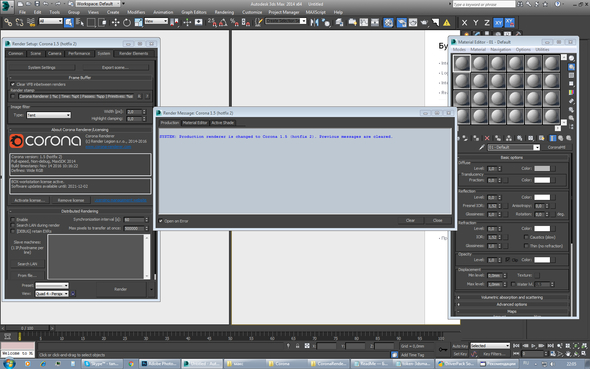
Всё было хорошо. А теперь ошибка и зависает всё рабочее поле (всё окна работают, материалы)
|
Автор |
Сообщение |
|
|---|---|---|
|
||
|
||
|
||
|
||
|
||
|
||
|
||
|
||
|
||
|
||
|






На чтение 6 мин. Просмотров 130 Опубликовано 15.12.2019
So basically what you are saying as a Dev is you created a error message that says check the log files but you didn’t actually set the game up to create log files you just think microsoft was nice enough to log the errors for you?
Thats like saying if i bought a toaster you manufactured and it caught fire and burned my house down i should contact the light company for providing the electricity for the toaster.
Sorry if i come off as rude but that is a little insulting.
Actually, Microsoft does create the logs automatically.
i wonder if this is what it feels like to have a stroke

Usually the dxdiag files, they’re logging these issues.
So basically what you are saying as a Dev is you created a error message that says check the log files but you didn’t actually set the game up to create log files you just think microsoft was nice enough to log the errors for you?
Thats like saying if i bought a toaster you manufactured and it caught fire and burned my house down i should contact the light company for providing the electricity for the toaster.
Sorry if i come off as rude but that is a little insulting.
No offense taken.
The error message isn’t from the game, it’s a system message from the operating system. As Quilnox wrote, Windows creates those dxdiags.
here is a list of things you can try:
- Important The graphics adapter needs to be compatible to DirectX 11.
- Set desktop to a smaller resolution: 1280 x 720. Then set the resolution to 1280 x 720.
- Update/repair runtimes.
- Force the more powerful graphics adapter manually (as dedicated graphics). This may help on notebooks with onboard/dedicated graphics.
- Update/reinstall graphic drivers. Update DirectX.
If no solution fixes this issue, please post a dxdiag to the bugtracker (see link above) including a short description of the issue (and steps you tried before). As previously noted, this isn’t easy to track down, the issues could be caused by many offenders.
Содержание
- Знания
- Проблема
- Ошибка графического устройства 3ds Max
- Информация о графическом устройстве 3ds Max
- Причины
- Решение
- Установить отсутствующие обновления
- Убедитесь, что видеокарта сертифицирована
- Установите самые последние драйверы видеокарты
- Изменение драйвера монитора
- Проверьте настройки 3dsmax.ini
- Сброс пользовательских настроек
Знания
Изучите основы и оттачивайте навыки для повышения эффективности работы в 3ds Max
Автор:
Support
Проблема
Ошибка графического устройства 3ds Max
Не удалось инициализировать графическое устройство.
Возможные решения:
— обновить графические драйверы и повторить попытку;
— изменить графическое устройство (DirectX / OpenGL, . ), используемое в 3ds Max с помощью командной строки: «3dsmax.exe -h»
Работа приложения будет завершена.
Информация о графическом устройстве 3ds Max
Не удалось инициализировать графическое устройство.Возможные решения:
— обновление графических драйверов и повторение — изменение
графического устройства (DirectX / OpenGL, . ), используемого в 3ds Max, с помощью командной строки
3dsmax.exe -h». Для получения дополнительных сведений о
этой проблеме, в файле журнала 3ds Max, задайте переменные среды
OGS_ERROR_LOG_LED 1 и OLED повторить попытку» Приложение
будет закрыто.
Причины
- Запуск более ранней версии 3ds Max 2018 ( Замечания: это для версий, предшествующих обновлению 2018.4, которая устраняет эту проблему только для этой версии).
- Настройки несоответствия версии Direct3D присутствуют в 3dsmax.ini файл.
Решение
Установить отсутствующие обновления
- Перейти к вашей Учетная запись Autodesk ,
- Выберите «Products & Services» > «All Products & Services».
- Выберите 3ds Max.
- Просмотр обновлений и надстроек.
- Найдите последнее обновление для используемой версии 3ds Max.
- Выберите вариант «Загрузка через браузер».
Убедитесь, что видеокарта сертифицирована
Установите самые последние драйверы видеокарты
Изменение драйвера монитора
Измените выбор драйвера 3ds Max Display Driver для наилучшей наилучшей совместимости между 3ds Max и любым неподдерживаемым или устаревшим графическим оборудованием:
Изменение видеодрайверов в 3ds Max перед запуском
Изображение, добавленное пользователем
Запустите 3ds Max с флагом “-vxs”.
Для этого:
- Щелкните правой кнопкой мыши ярлык 3ds Max .
- Выберите «Свойства».
- На вкладке «Ярлыки» добавьте флаг -vxs в конец целевой записи.
Примечание. Чтобы принять этот флаг, после последнего ценового предложения 3ds Max должен быть добавлен пробел.
Проверьте настройки 3dsmax.ini
- Перейдите в папку C:UsersusernameAppDataLocalAutodesk3dsMax[версия]RUS.
- Откройте файл 3dsmax.ini в текстовом редакторе, например в Блокноте.
- Нажмите CRTL + F и выполните поиск раздела с пометкой [CommandPanel].
- Если в разделах [CommandPanel] и [WindowState] имеются две записи для элементов GFXDirect3DVersion, они должны быть одинаковыми.
- Повторно сохраните INI файл.
- Перезапустите 3ds Max.
Сброс пользовательских настроек
В некоторых случаях ошибку можно устранить, вернув 3ds Max настройки профиля пользователя по умолчанию:
Восстановление пользовательских настроек 3ds Max до значений по умолчанию
Внимание.Хотя пользователи 3ds Max могут по-прежнему запускать программное обеспечение на компьютерах Apple Macintosh или на виртуальном компьютере, Autodesk больше не поддерживает эти конфигурации и не может обеспечить корректную работу программного обеспечения на этих платформах. Для получения дополнительной информации см .:
- Apple Macintosh больше не поддерживается для 3ds Max
- Запуск 3ds Max и Maya в виртуальных средах, таких как Boot Camp, Parallels, VMWare, AWS Cloud или Citrix
Устранение некоторых ошибок, которые появляются при запуске 3D Max-а 2018.
Если ошибка носит такой характер:
Could not initialize the graphic device
Potential solutions are :
— Update your graphics drivers and retry
— Change the graphic device (DirectX / OpenGL, . ) used by 3ds Max with the command line : «3dsmax.exe -h»
The application will exit
То исправить её обычно не сложно. В панели пуск, в папке, в которую установился Autodesk 3D Max будет ссылка, где можно поменять настройки запуска. Поочередно меняем запуск с графикой от DirectX, OpenGL и всеми другими доступными вариантами. Какой-то из них да сработает.
Если ошибки имеют такой вид:
Ошибки могут ругаться и на другие классы и DLL:
То дело хуже. Что-то установилось не так. Либо поврежденный установочный дистрибутив либо несоответствие мощности компьютера, устарелости операционной системы и много чего ещё.
В этом случае рекомендую скачивать 3D Max только с официального сайта. Для студентов программа на 3 года бесплатна. Если и после этого программа не запуститься, значит скорее всего надо менять компьютер.
Symptoms
‘Could not initialize the graphic device’ error message appears while launching Autodesk 3ds Max 2019 in a Windows virtual machine.
Cause
d3dcompiler_43.dll file is missing as it is a part of DirectX(R) End-User Runtime package which is not included in Windows installation.
Resolution
Install DirectX(R) End-User Runtime manually in the Windows virtual machine. To download DirectX(R) End-User Runtime package visit the Download Center page